
Automation
This feature allows tasks configured in the Task Organization module to be automatically executed based on specified conditions.
Folder Monitoring
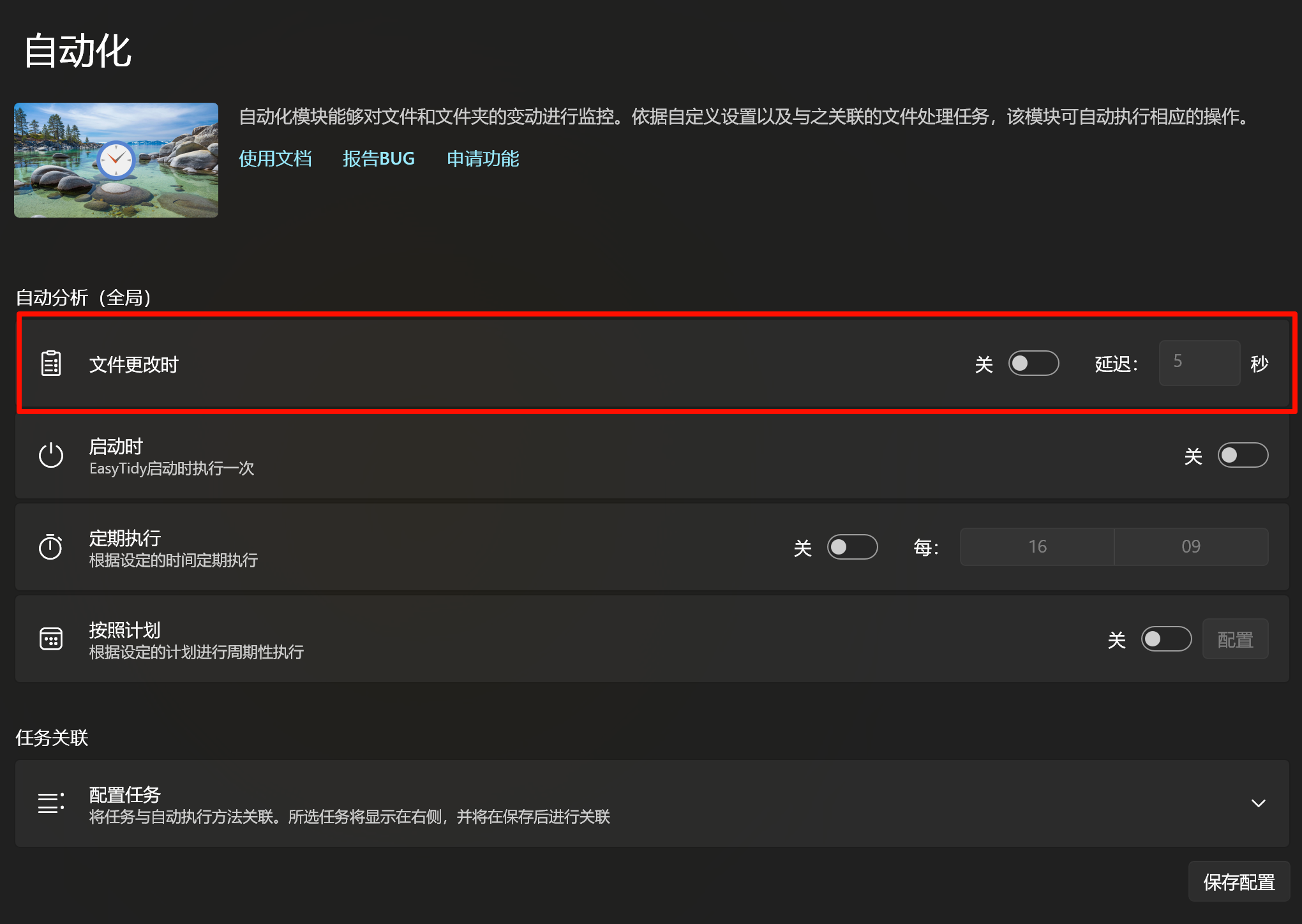
When the automatic execution condition is set to file changes, the source files configured in the Task Organization module are automatically monitored. When a file change occurs, files meeting the conditions are automatically processed. Normally, only the changed files will be processed. If you want to process other files alongside the changed files, consider combining the file change trigger with scheduled execution.
Note: When using folder monitoring, it is recommended to set a delay to avoid triggering the file processing operation during file editing.
Scheduled Processing

Set EasyTidy to automatically process files at regular intervals. The maximum interval can be set to 23 hours and 59 minutes. For longer intervals, use the scheduled execution configuration.
Scheduled Execution
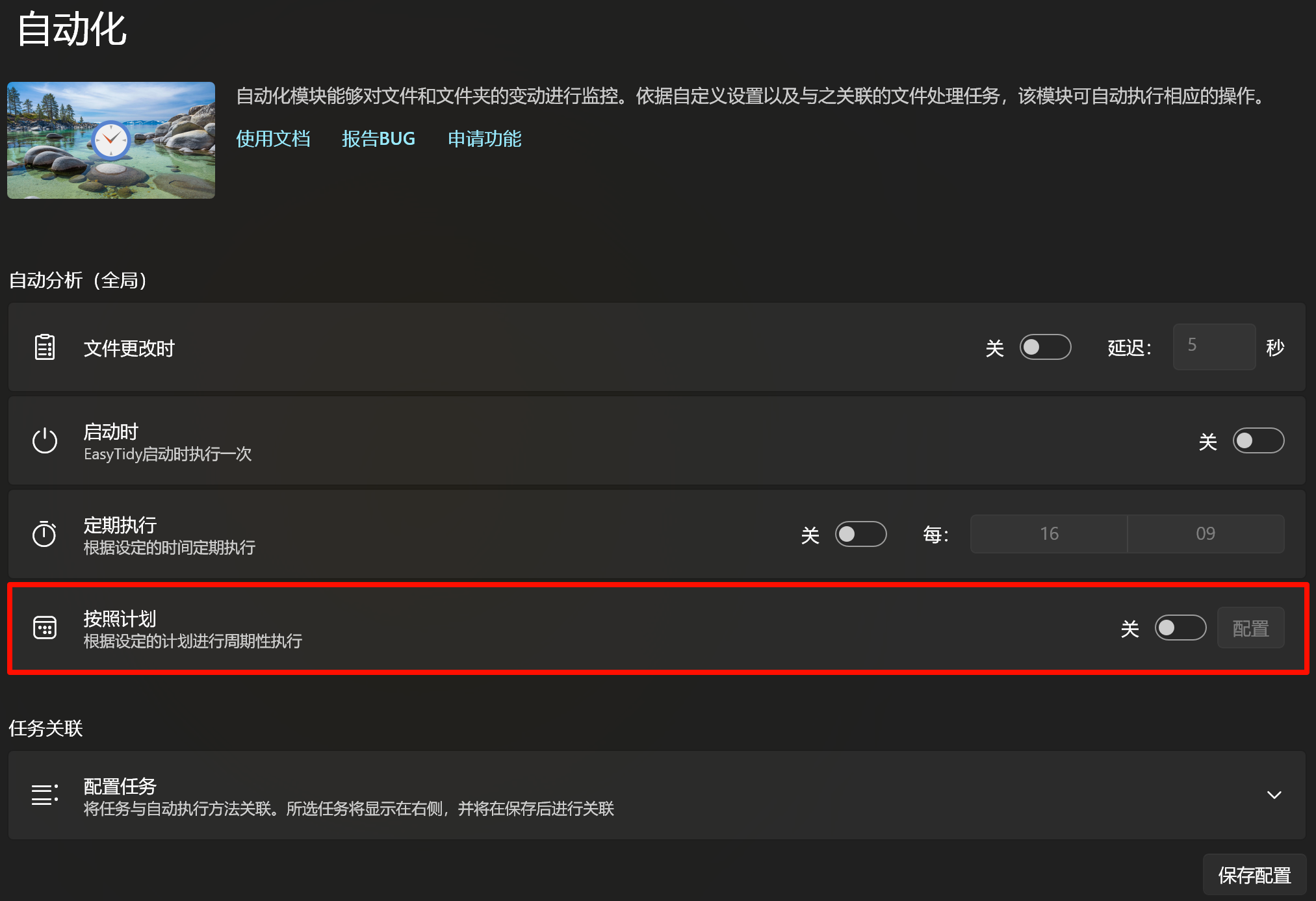
Configure EasyTidy to execute file organization tasks automatically according to a schedule. You can choose to use CRON expressions or customize the execution timetable.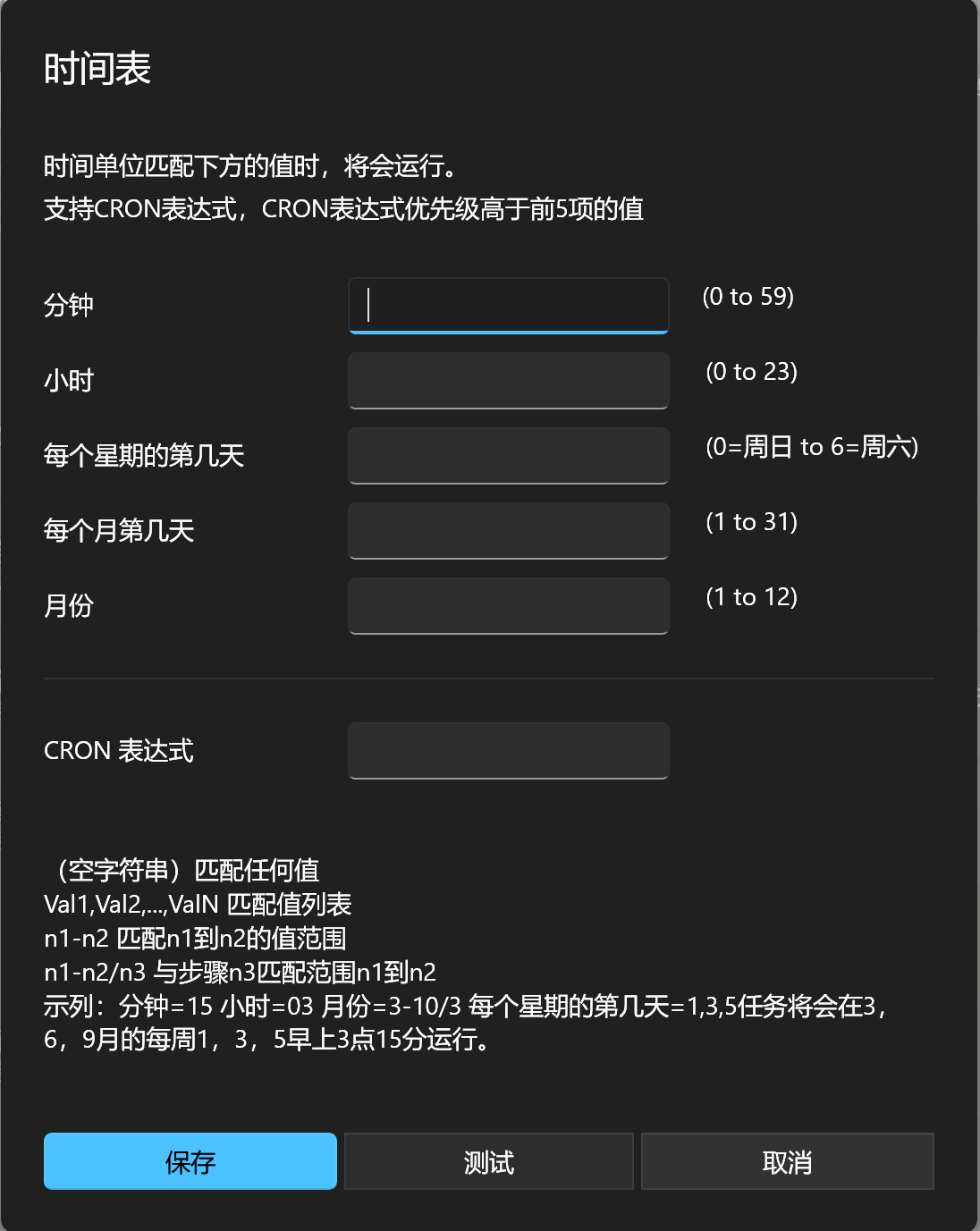
In the timetable, an empty string matches any value; Val1,Val2...ValN matches a list of values; n1-n2 matches the range of values from n1 to n2; n1-n2/n3 matches steps of n3 within the range of n1 to n2.
Example: For minutes = 15, hours = 03, months = 3-10/3, and weekdays = 1,3,5, the task will execute at 3:15 AM on Mondays, Wednesdays, and Fridays between March and October.
When a CRON expression is provided, it overrides the five rule fields above. The execution cycle is determined by the CRON expression.
On Startup
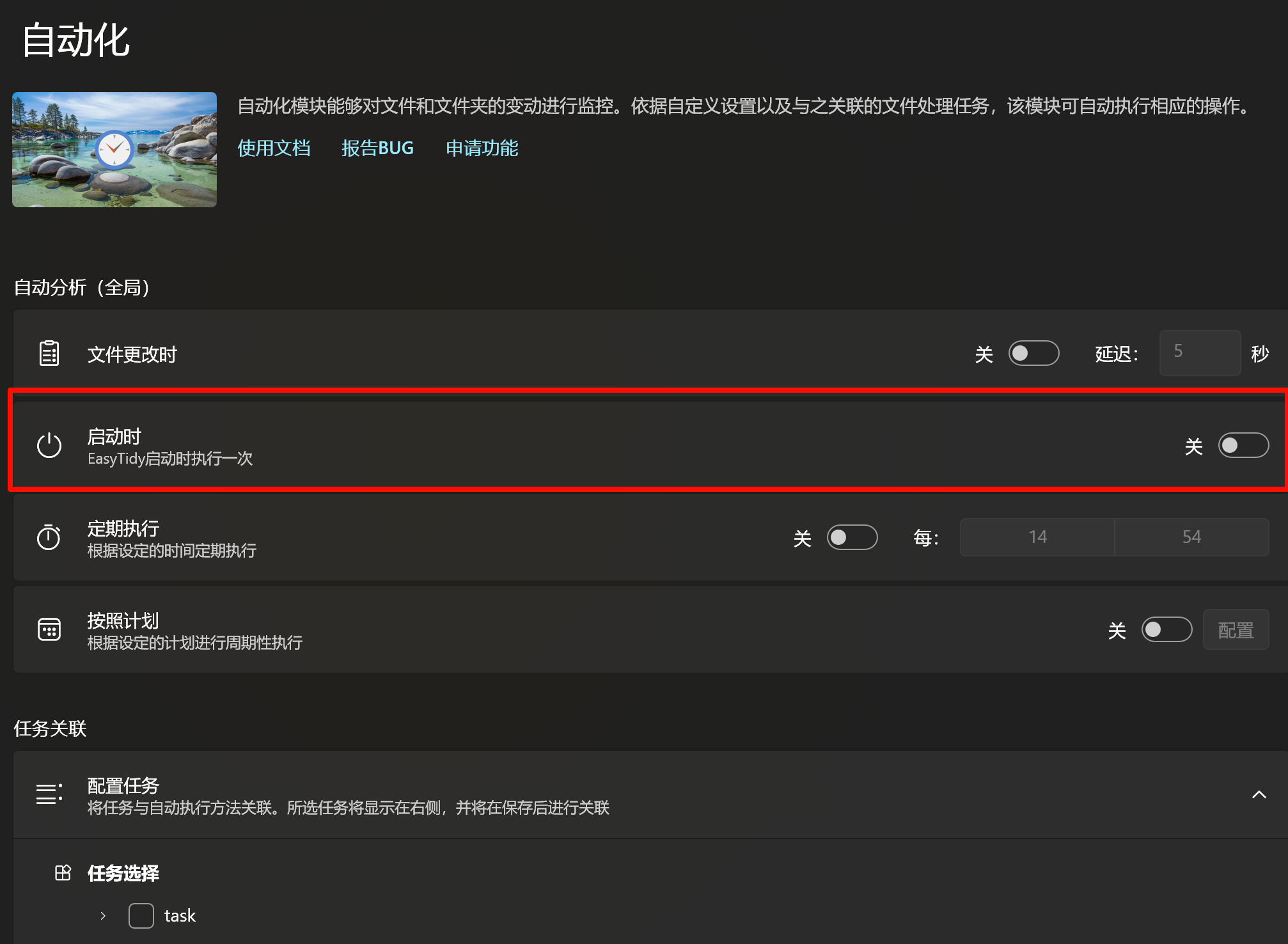
Set the task to execute automatically once when EasyTidy starts.
exits or the system shuts down
 Configure EasyTidy to automatically run specified tasks when the program exits or the system shuts down. (Not guaranteed to run properly on all systems)
Global Automation Analysis
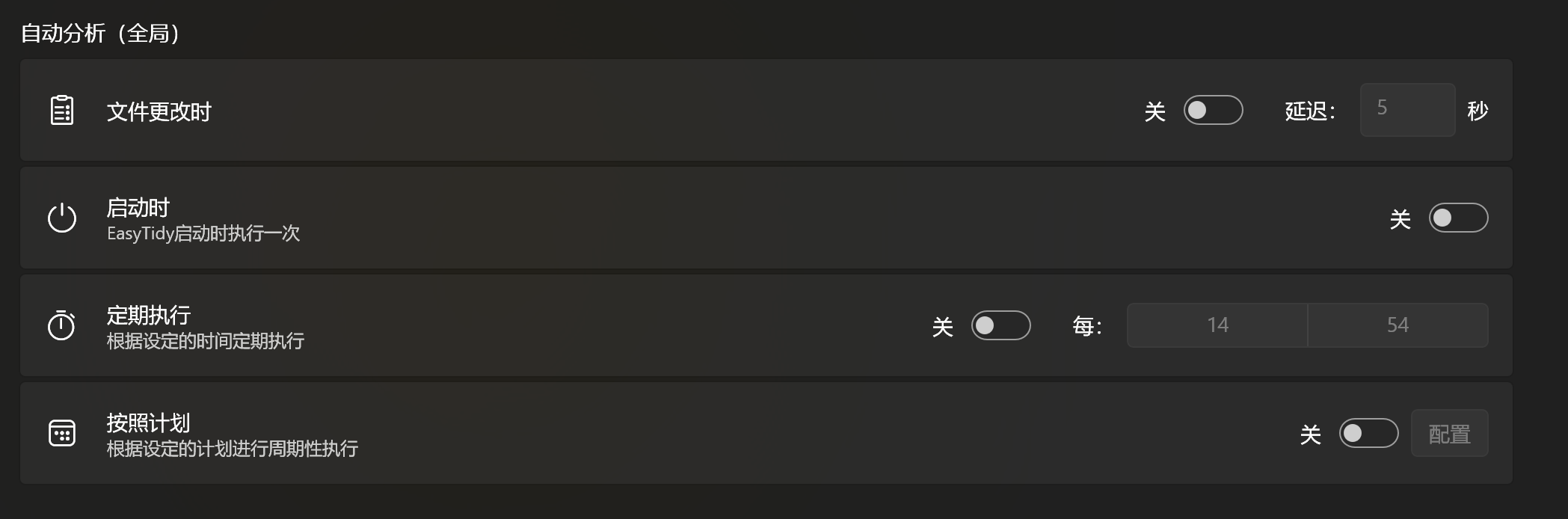
Enabling a specific automation method in this menu allows all automatically associated tasks configured in the Task Association section to use the same execution method. This design simplifies operations, enabling users to quickly set consistent automation behavior for multiple tasks.
Notes:
- Once a specific method is enabled, all tasks associated and not otherwise configured will share this method.
- After configuration, click "Save Configuration" to ensure changes take effect.
Task Association
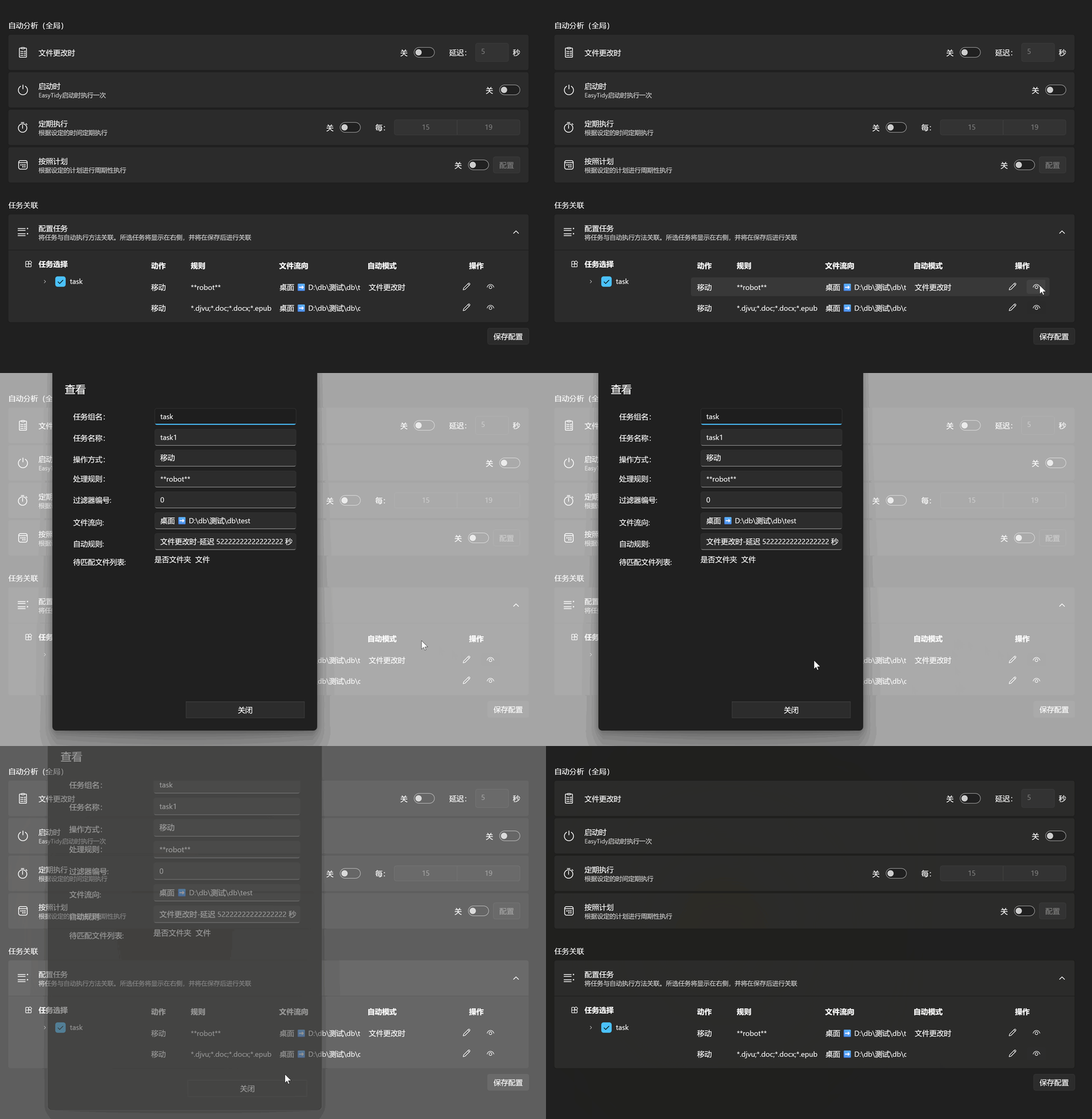
The Task Association feature allows you to individually configure automatic execution methods for each task while providing file previews and execution flow visualization to help manage and adjust task logic.
Features
Individual Automation Settings
Each task can be individually configured with the following automation methods:- File Changes: Triggers task execution upon detecting file changes.
- On Startup: Executes the task when EasyTidy starts.
- On Exit/Shutdown: Execute the task automatically, when the program exits or the system shuts down. (This may not work on all systems).
- Periodic Execution: Executes tasks at specified intervals.
- Scheduled Tasks: Executes tasks according to a timetable or CRON expression.
- Enabling "Individual Settings" affects only the selected task and does not override other tasks.
Preview Files and Execution Flow
- Displays the list of files to be processed, showing their source and destination paths.
- An execution flow diagram visualizes task logic, ensuring accurate configuration.
Switch Task List View
- Provides flexible display options for task association lists. Click the icon next to "Task Selection" to toggle between:
- Detailed List View: Displays task name, execution method, processing rules, etc.
- Compact Icon View: Displays tasks as icons for quick navigation.
- Provides flexible display options for task association lists. Click the icon next to "Task Selection" to toggle between:
Configuration Steps
Select Tasks
- In the task association interface, check the tasks to configure from the task list.
Set Execution Methods Individually
- Click the pencil icon to select the desired automation method for the current task.
- Click "Save Configuration" to apply changes.
Preview Files and Execution Flow
- Review the list of files to be processed and their execution paths.
- Verify the execution flow diagram to ensure task rules are correctly applied.
Switch Task List Views
- Click the toggle icon next to "Task Selection" to switch between task display modes.
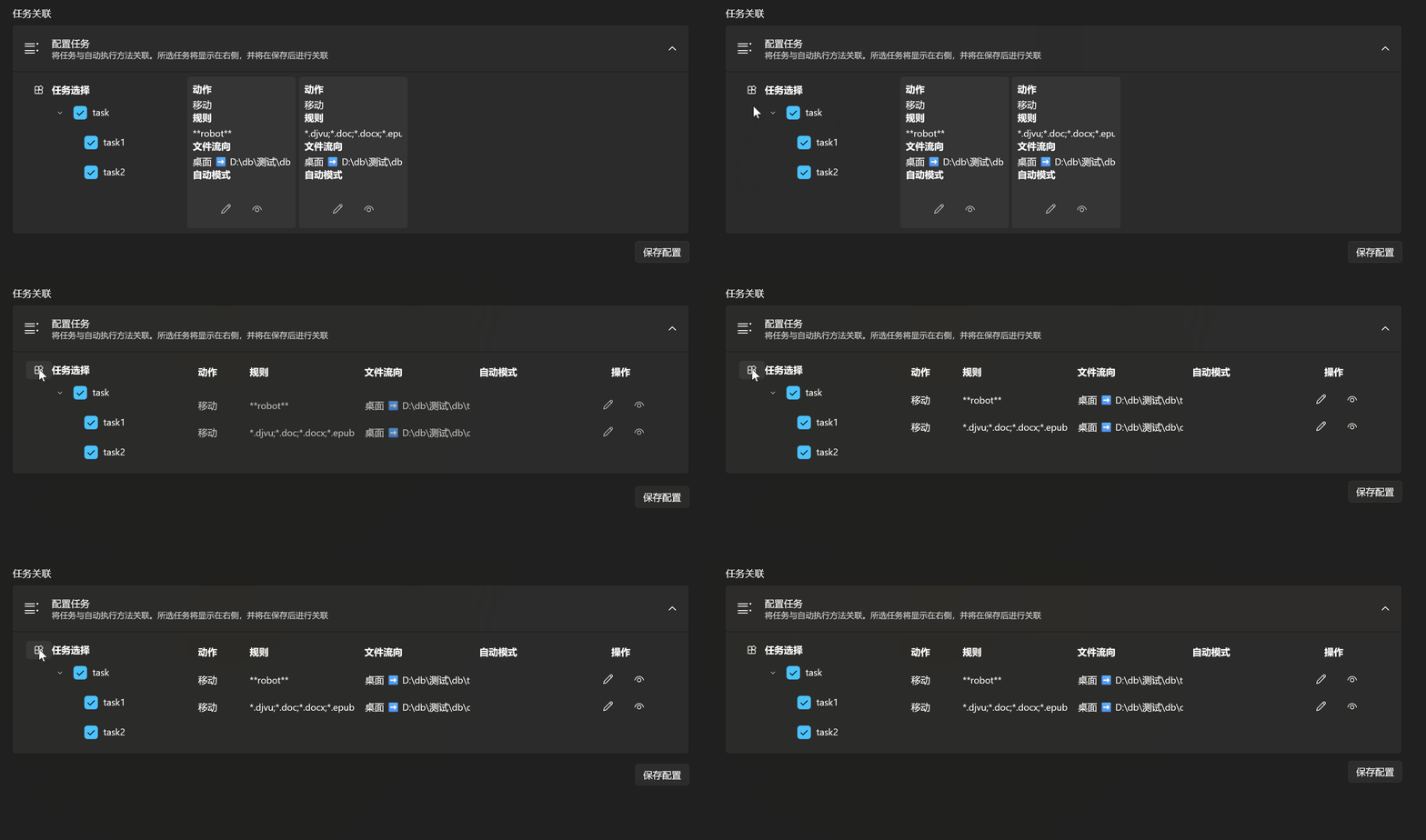
- Click the toggle icon next to "Task Selection" to switch between task display modes.
Notes
- Task Independence: Individual settings only affect the selected task without impacting others.
- Preview Accuracy: The file list preview is generated